Getting Started — Ultro ERP
Ultro ERP is a modular, AI-driven enterprise platform built to streamline manufacturing, procurement, sales, inventory, and support workflows. Ultro focuses on real-time insights, automation, and mobile-first usability so teams can operate efficiently across factories and offices.
This page covers the essentials for getting into your Ultro tenant: web login, mobile app login, and how to add the Progressive Web App (PWA) to an iPhone home screen.
Login via Web
Follow these steps to login or register via the web portal:
-
Open your tenant login URL (example:
https://test.ultro.ai/login).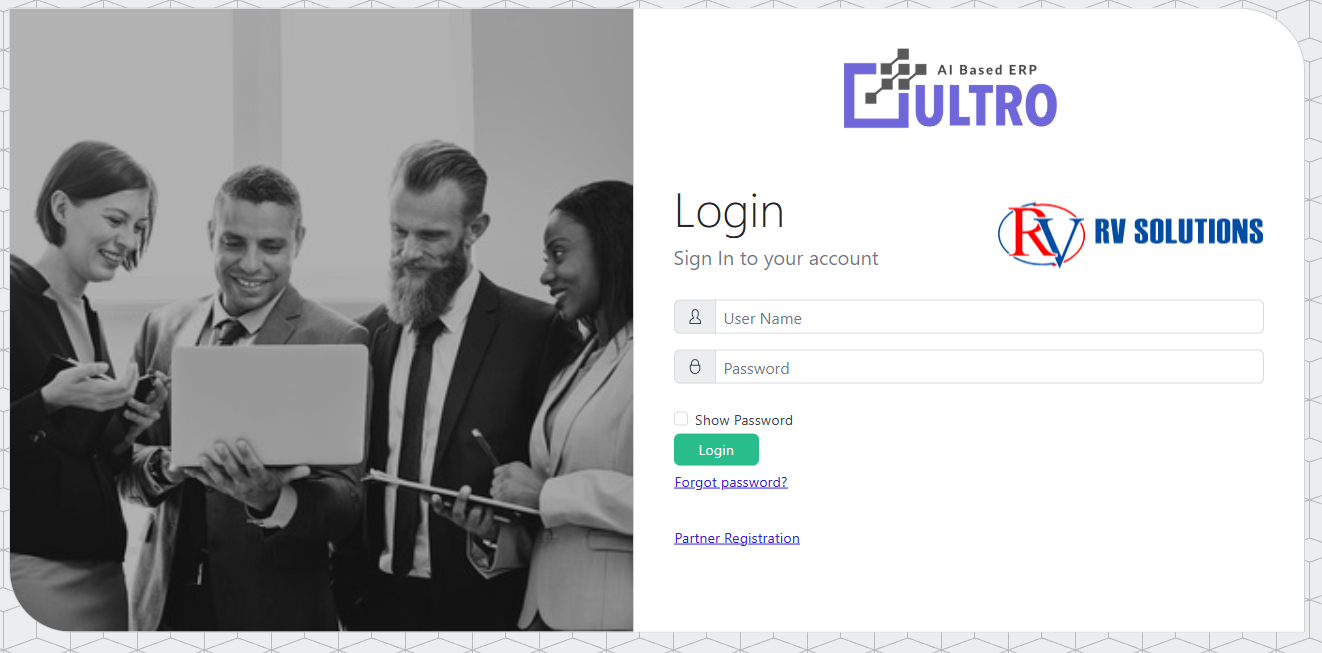 Login page — enter credentials or choose registration.
 -
If you are a partner or onboarding a new account, click Partner Registration and fill in the requested details (email, name, contact information).
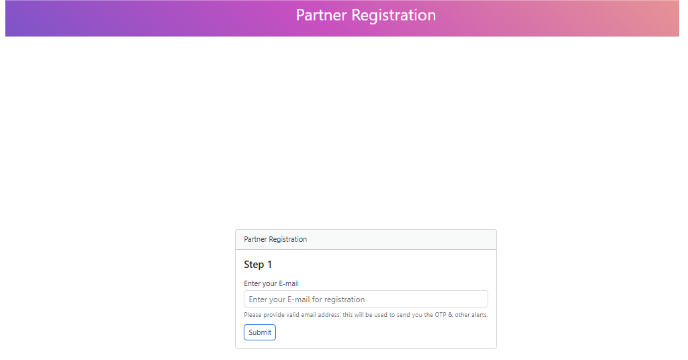 Partner registration form — provide a valid email for token/OTP.
 -
After registration you will receive a verification token/OTP to the email provided. Enter the token on the Verify OTP screen.
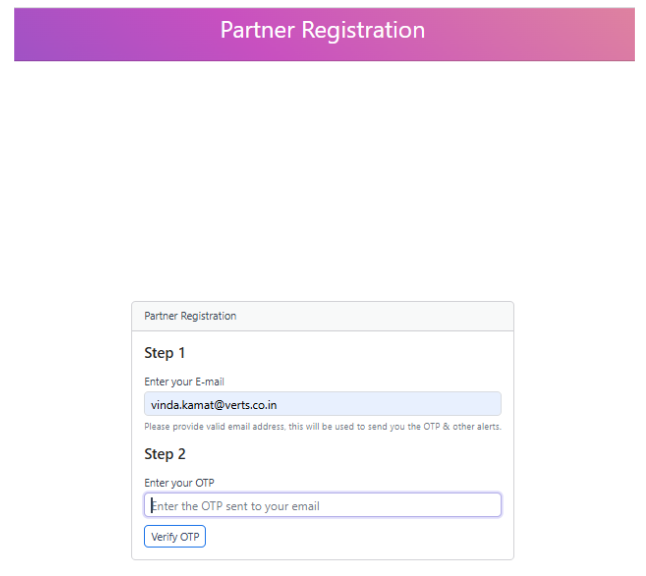 OTP verification step.
 -
Complete the subsequent forms (Basic Details, Statutory Details, Bank Details, and KYC attachments) as requested and submit the registration.
-
On successful submission you will see confirmation and may proceed to sign in to your tenant.
For full step-by-step guidance, see the original KB: Login Via Web — https://knowledge.ultro.ai/books/login/page/login-via-web
Login via Mobile App (Android / generic mobile)
To login using the mobile app:
-
Open the Ultro mobile app on your device.
-
On the first screen enter the company code provided by your Ultro administrator or in the welcome email.
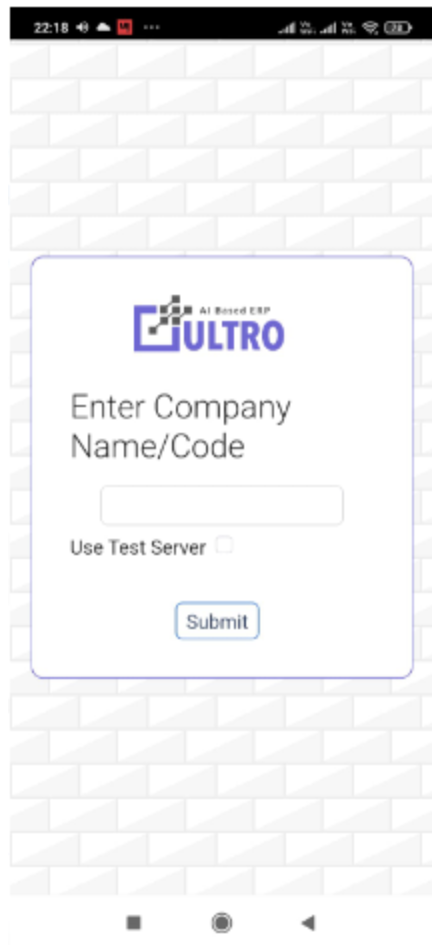 Enter the company code to reach your tenant.
 -
After entering the correct company code you will be presented with the normal username/password login screen. Enter your credentials to continue.
-
If you need to change the company (multiple subscriptions) use the Change Company option and re-enter the correct company code.
-
If you are using a test server subscription, enable Use Test Server on the company code screen when applicable.
For details and troubleshooting on mobile login flows see: https://knowledge.ultro.ai/books/login/page/login-via-mobile-app
Ultro App for iPhone / iOS — Add to Home Screen
You can add Ultro as a Progressive Web App (PWA) to your iPhone home screen for app-like access:
-
Open your tenant URL in Safari on your iPhone (example:
https://mycompanycode.ultrodev.com/login).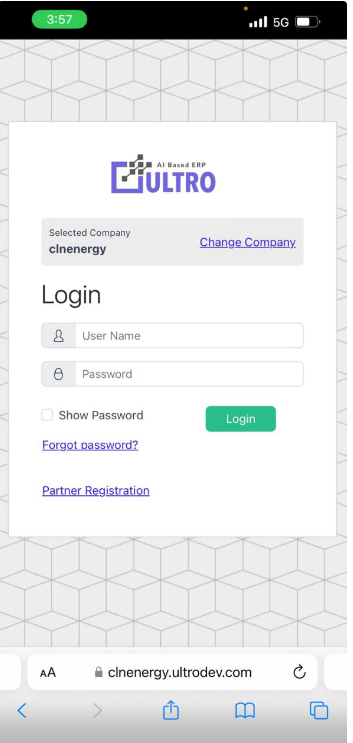 Open the tenant URL in Safari.
 -
Tap the share button and choose Add to Home Screen.
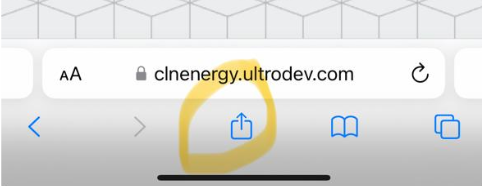
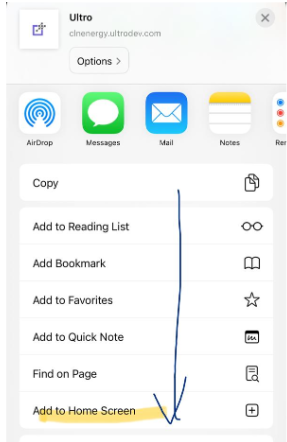
-
Confirm the icon will be added — the Ultro icon should appear on your home screen.
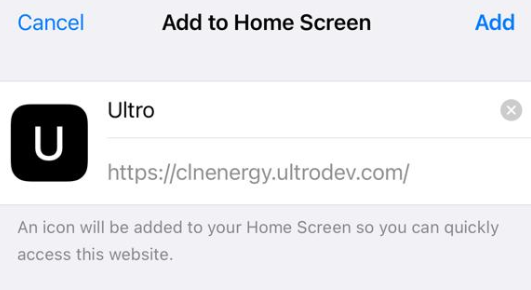 Ultro icon on iPhone home screen.
More details: https://knowledge.ultro.ai/books/login/page/ultro-app-for-iphoneios-users
Need more help?
- Use the Support page to search topics and articles: Support →
- For environment issues or account problems, include tenant URL, user id, timestamps, and screenshots when contacting support.