Purchase Requisition
This page explains how to create and manage Purchase Requisitions in Ultro ERP. A Purchase Requisition (PR) is a request to procure goods or services and typically flows through an approval process before being converted to a Purchase Order (PO) or RFQ.
Create a new Purchase Requisition
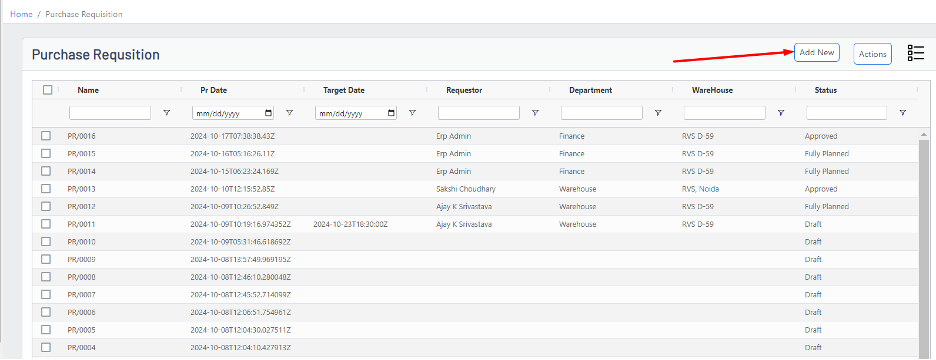
- Navigate to Purchase → Purchase Requisition → Add New.
- Fill in the Main Section fields and add product lines in the Product Table.
Main Section
- Date / User / Department: These are auto-populated by the system.
- Warehouse: Choose the warehouse where stock will be received.
- Store / Location: Select the store or location within the warehouse — this affects on-hand quantities shown in the product table.
- Purpose / Remarks: Add a short description for the requisition to help approvers and procurement staff.
Tip: Ensure the Warehouse and Store/Location are correct so the system can display accurate on-hand quantities and suggested fulfilment locations.
Product Table
Add one or more product lines in the table. For each line:
- Product: Search and select the product name or SKU.
- Quantity: Enter the required quantity.
- UOM: Unit of Measure is picked automatically when the product is selected.
- On-hand: Shown based on selected Store/Location so you can decide whether to procure or transfer.
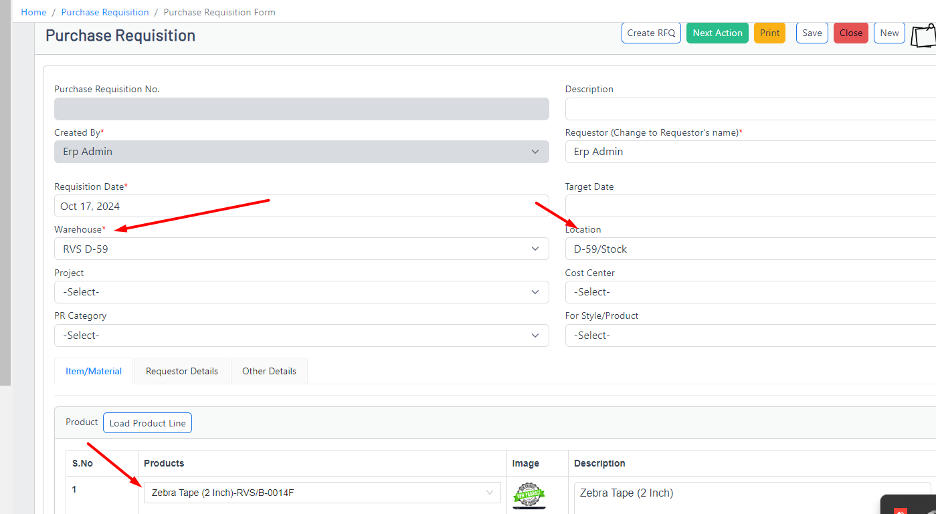
When all lines have been added, click Save to create the Purchase Requisition draft.
Submit for approval
To send the PR for approval:
- Click Next Action on the document toolbar.
- Choose Send for Approval (or the equivalent workflow action configured in your instance).
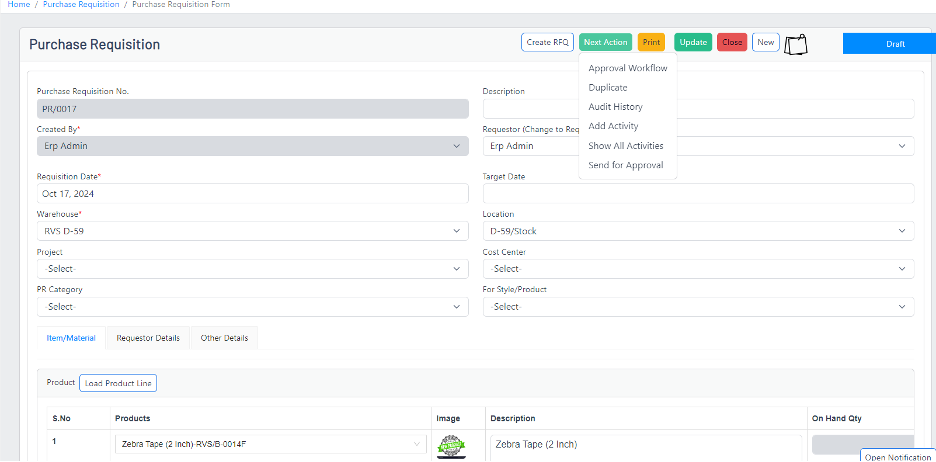
After sending for approval the requisition status will change to Pending Approval. Approvers will receive a notification and can review the details.
Approval process and status
- Pending Approval — The requisition awaits review.
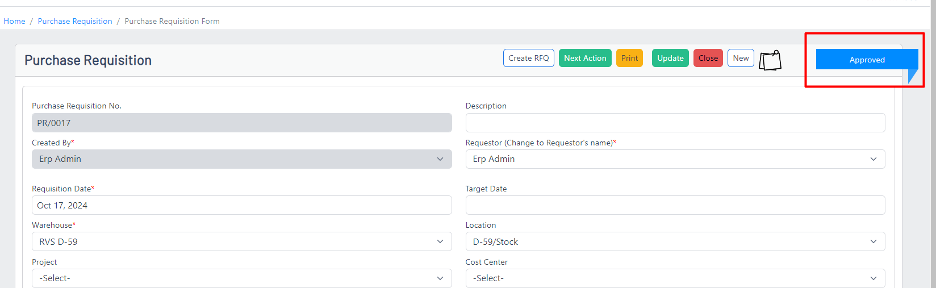
- Approved — The approver has approved the PR and it is now ready to be converted to an RFQ or Purchase Order.
- Rejected / Cancelled — The approver has rejected or cancelled the requisition with an optional comment.
Once approved, procurement users can create an RFQ or directly create a Purchase Order from the requisition lines (depending on your procurement workflow).
Best practices & notes
- Add clear purpose and delivery dates on each line to speed up approvals.
- Use accurate Store/Location to surface correct on-hand quantities.
- If you expect multiple supplier quotations, use RFQs after approval to compare supplier bids.
Related pages
Content adapted and expanded from Ultro Knowledge Base: Purchase Requisition.